Rummagio
How-to guides

Step by step, with pictures.

Short guides for everything in Rummagio. You can find these in the app too, under Menu.

Boxes and rooms

Add a box

  1. On the home page, tap “+ Add a box”.
  2. Under “What's going in it?”, type a short name, like “Christmas decorations”.
  3. Under “Where does it sit?”, say where it lives, like “Top shelf, left”.
  4. Pick a colour to match the real box if you like.
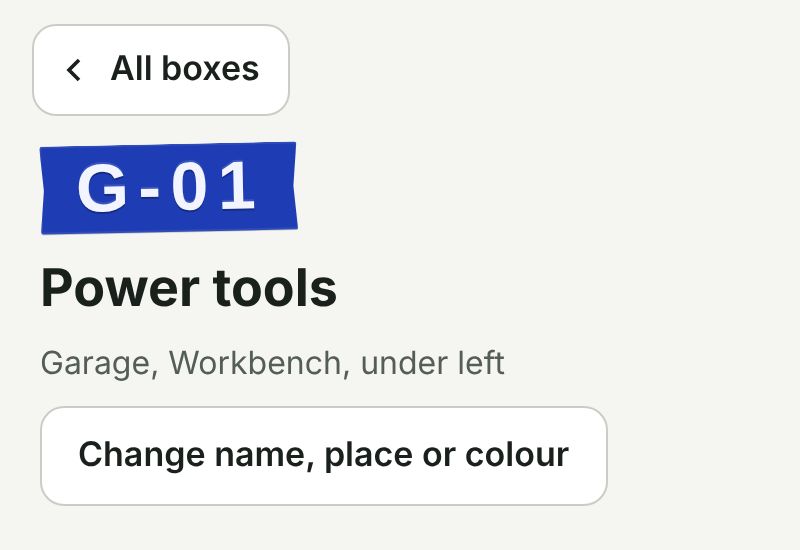
  5. Tap “Create box”. It gets its own number, like G-01.
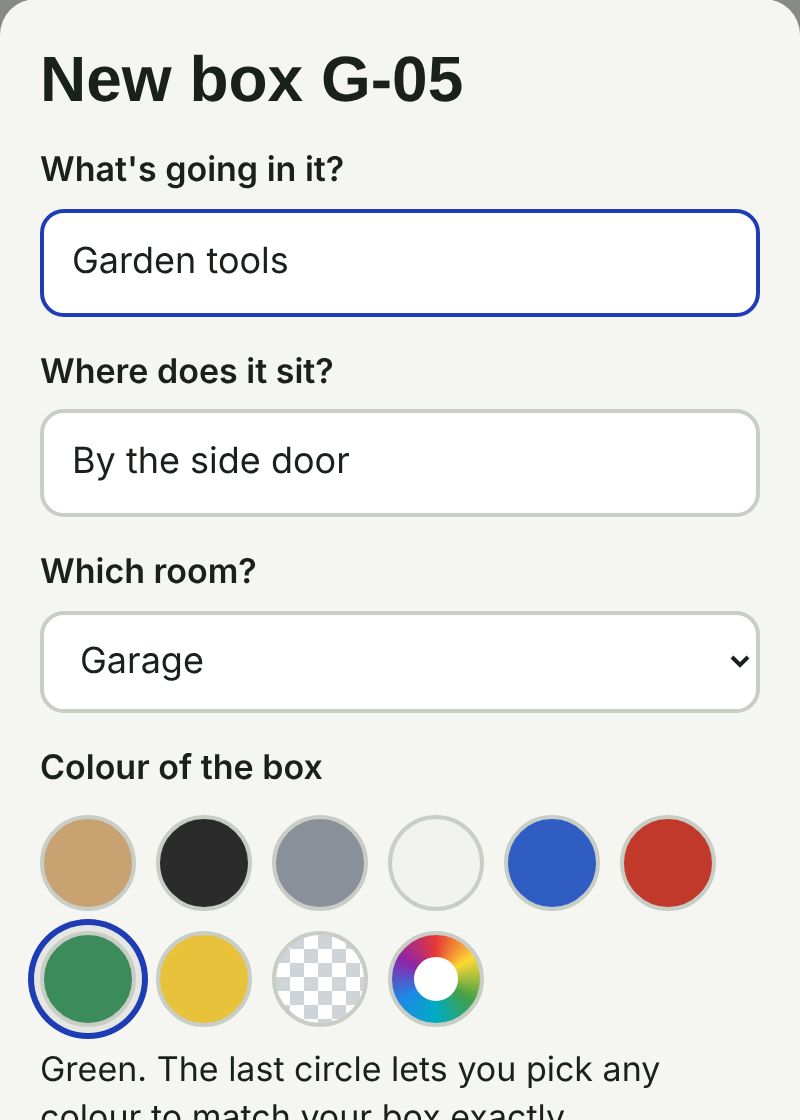
Add a box in Rummagio

Change or delete a box

  1. Tap the box to open it.
  2. Tap “Change name, place or colour”. You can also move it to another room here.
  3. Tap “Save changes”.
  4. To delete a box, tap “Delete this box” at the bottom. If there are things in it, you can move them to another box first.
  5. Deleted something by mistake? Tap Undo on the message at the bottom straight away.
Change or delete a box in Rummagio

Add, rename or remove a room

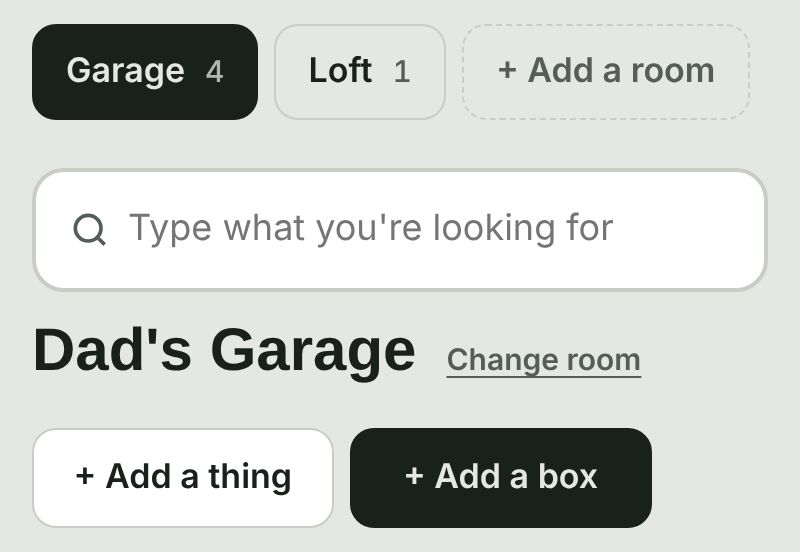
  1. To add a room, tap “+ Add a room” at the top, then pick one like Loft or Shed, or type your own.
  2. To rename a room, open it and tap “Change room” next to its name. You can change the letters on its boxes there too, like SR for Spare Room.
  3. To remove a room, tap “Change room”, then “Remove this room”. If it has boxes in, you can move them to another room first.
Add, rename or remove a room in Rummagio

Things in your boxes

Add things to a box

  1. Open the box.
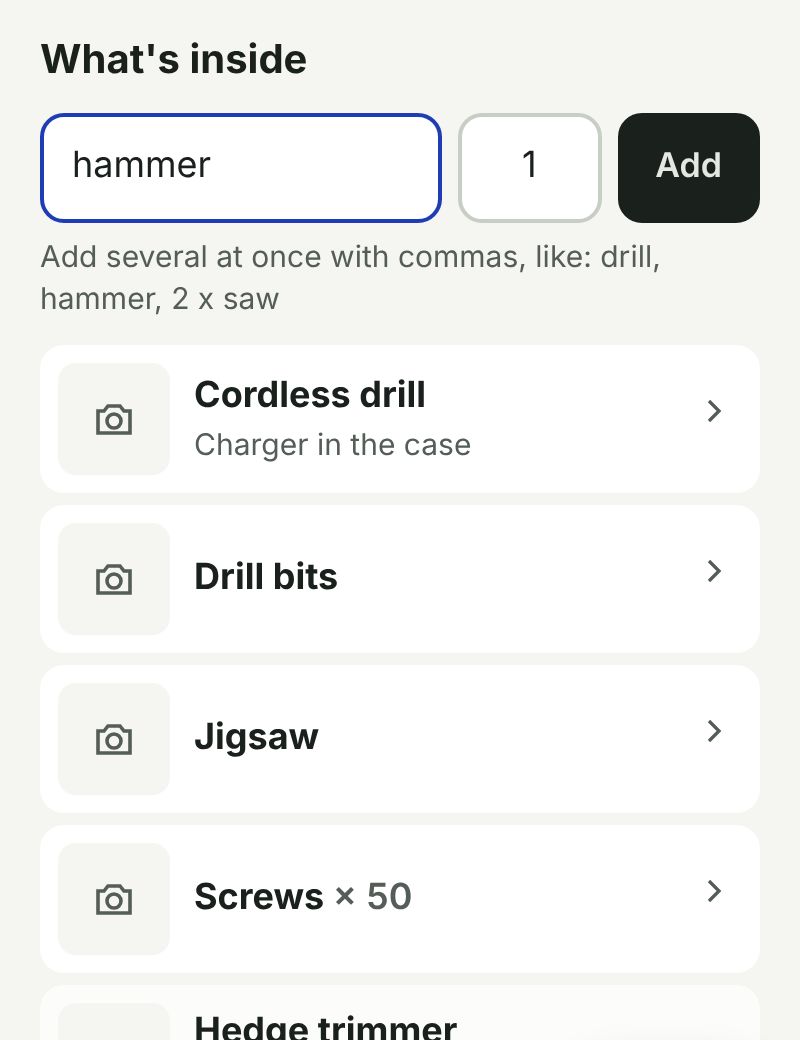
  2. Under “What's inside”, type the thing, like “drill”.
  3. Change the number next to it if you've got more than one, like 50 screws.
  4. Tap Add.
  5. To add lots at once, put commas between them: drill, hammer, 2 x saw.
  6. Or, from the home page, tap “+ Add a thing” and pick which box it's going in.
Add things to a box in Rummagio

Add a photo, a note or how many

  1. Open the box and tap the thing.
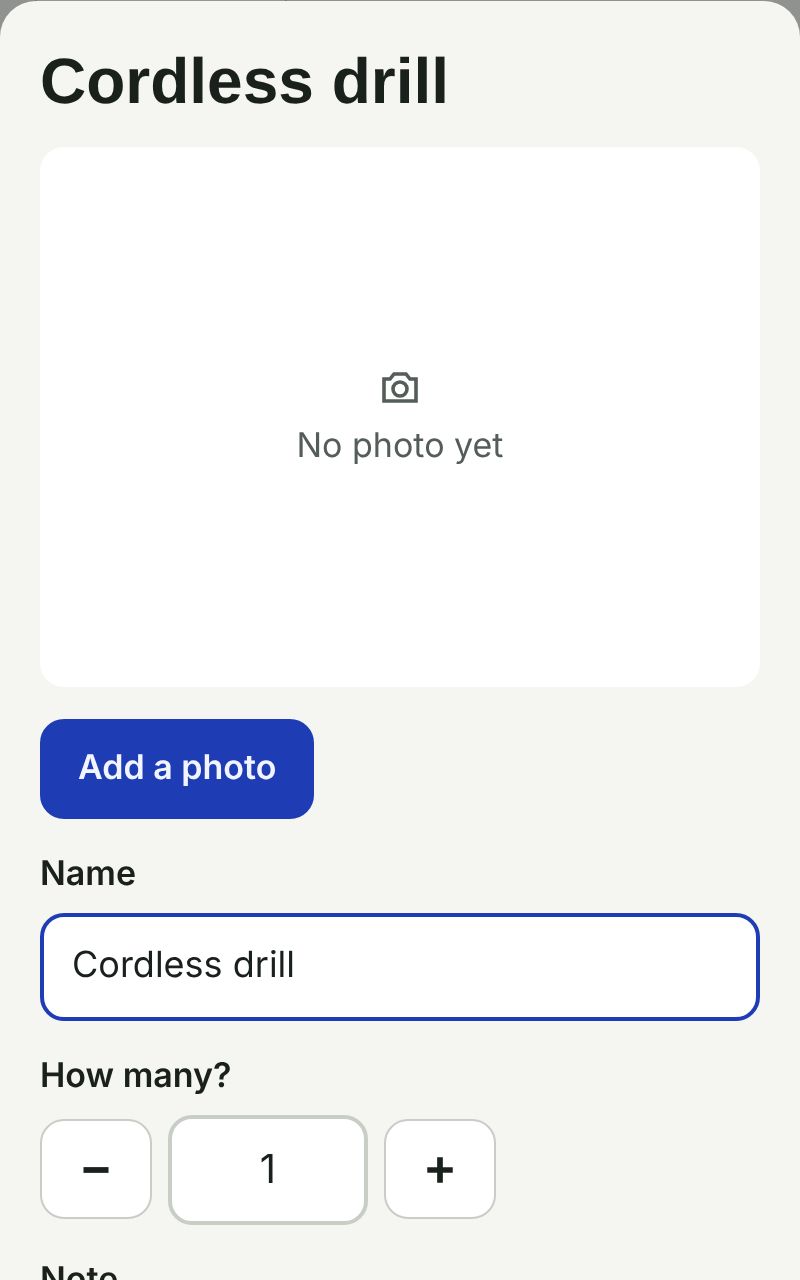
  2. Tap “Add a photo” to take one with your camera or pick one you already have.
  3. Use the − and + buttons to change how many.
  4. Add a note if it helps, like “charger in the case”.
  5. Tap Save.
Add a photo, a note or how many in Rummagio

Lent, taken out, sold or binned

  1. Open the box and tap the thing.
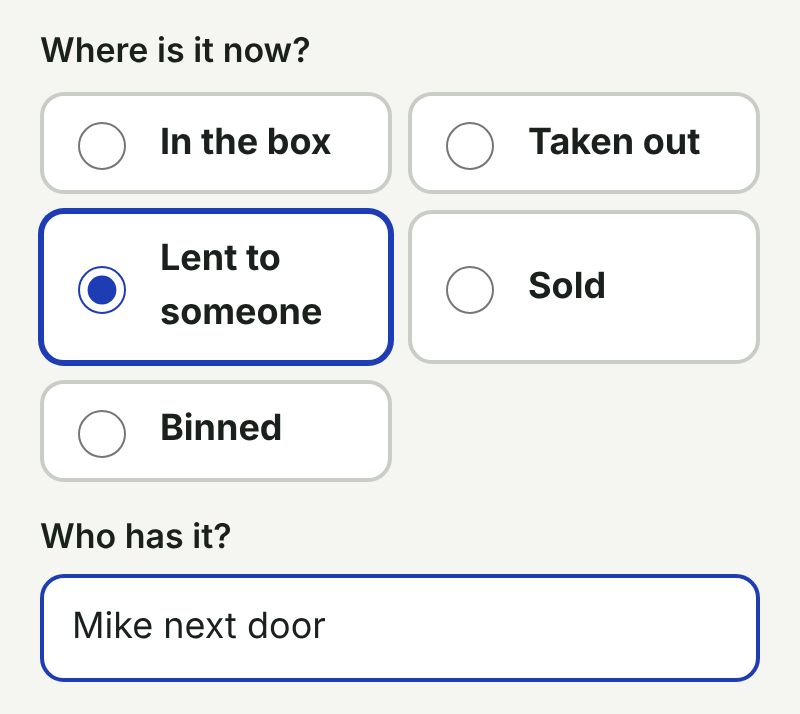
  2. Under “Where is it now?”, pick what's happened to it.
  3. If you lent it, type who has it, like “Mike next door”.
  4. Tap Save. Search will now say where it is, like “Lent to Mike”.
  5. Got more than one? A “How many?” box appears, so you can lend 10 of your 50 screws. They show as their own line, and join the rest again when you mark them back in the box.
  6. Things you've sold or binned move to the bottom of the box, under “sold or binned”. Tap one to put it back.
Lent, taken out, sold or binned in Rummagio

Move a thing to another box

  1. Open the box and tap the thing.
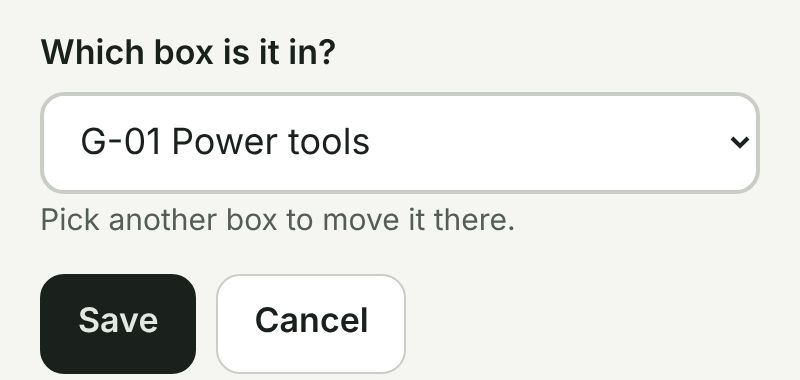
  2. Under “Which box is it in?”, choose the new box.
  3. Tap Save. It moves straight away.
Move a thing to another box in Rummagio

Labels

Print a label and stick it on

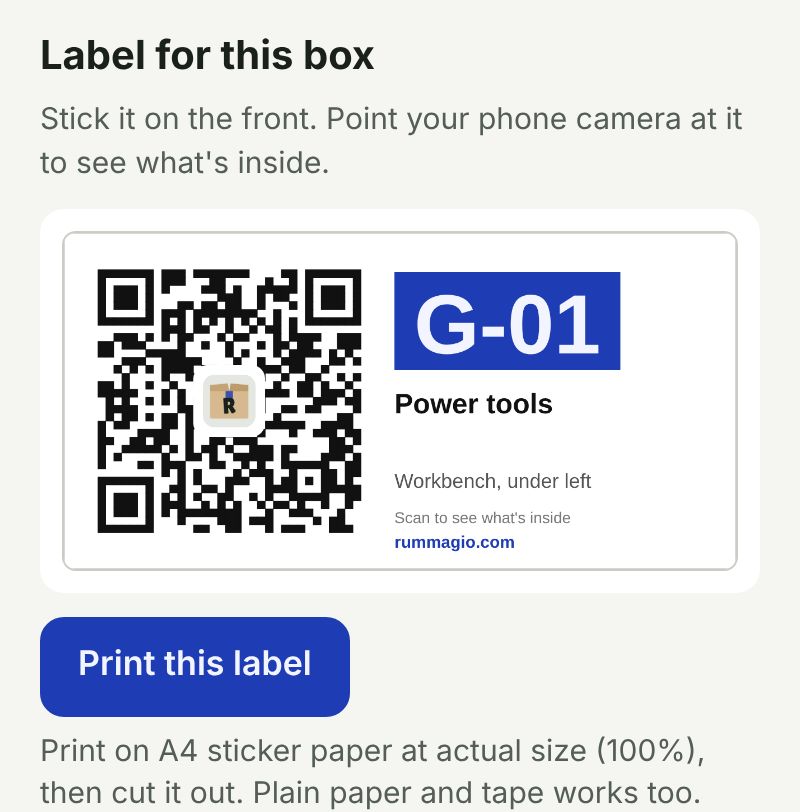
  1. Open the box. Its label is under “Label for this box”.
  2. Tap “Print this label”. To print every label in a room, tap “Print all labels” on the home page instead.
  3. Say what you're printing on: plain paper or A4 sticker paper (cut them out), or a sheet of Avery labels like L7165. Half a sheet already used? Pick which label to start at.
  4. Print with your printer set to actual size (100%), not “fit to page”.
  5. Stick it on the front of the box. Plain paper and clear tape is fine too.
Print a label and stick it on in Rummagio

Plan ahead with box sheets

  1. Box sheets help when you're packing: make the boxes first, list what's going in each, then pack.
  2. Add the box and type what's going in it.
  3. Open the box and tap “Print box sheet”. For a whole room, tap “Print all labels” on the home page and choose box sheets.
  4. Each box gets an A4 page: the list at the top with tick boxes and blank lines for extras, and its label at the bottom.
  5. Tick things off as you pack them, then cut along the dashed line and stick the label on the box.

Moving house

  1. Tap Menu at the top, then Moving house, then “Turn on Moving house”.
  2. Open a box, tap “Change name, place or colour” and fill in “Goes to”, like Kitchen.
  3. Print its label or box sheet. “Goes to” shows big across the bottom, so whoever carries it knows where it goes.
  4. Moved in? Turn Moving house off in the Menu and everything goes back to normal.

Scan a label

  1. Open your phone's camera, the normal one you take photos with.
  2. Point it at the label for a second or two.
  3. Tap the link that pops up. The box opens, showing what's inside.

Finding things

Find something

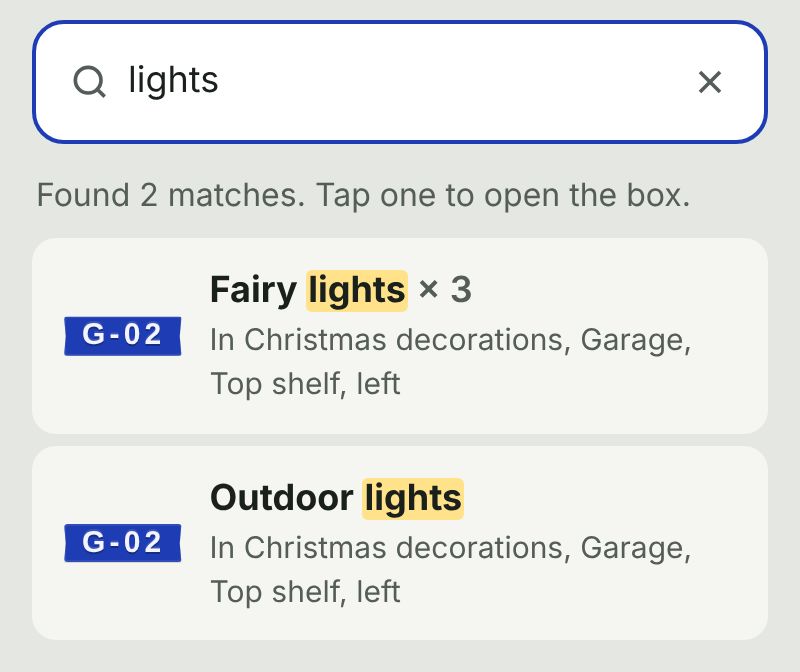
  1. Type what you're looking for in the search bar at the top, like “lights”.
  2. It shows every match, with the box it's in and where that box sits.
  3. Tap a result to open the box. The thing is highlighted.
  4. Small spelling mistakes are fine. It still finds “drill” if you type “dril”.
Find something in Rummagio

See what's changed

  1. Tap Menu at the top, then History.
  2. It lists what's been added, moved, lent or removed, newest first, with who did it and when.
  3. Looking for something? Type it in the search box at the top, like “drill”, to see only the changes to it.
  4. You can also tap any thing in a box. Its screen shows what's happened to it lately.

Your account

Put it on your home screen

  1. On iPhone: open rummagio.com in Safari. Tap the Share button (the square with an arrow), then “Add to Home Screen”.
  2. If you use a different browser on iPhone, like Brave or Chrome, and can't see “Add to Home Screen”, open rummagio.com in Safari and do it there.
  3. On Android: open it in Chrome. Tap the three dots at the top, then “Add to Home screen” or “Install app”.
  4. It then opens with one tap, like any other app.

Sign in on another phone or computer

  1. Go to rummagio.com and tap “I already have an account”.
  2. Type the same email address you signed up with.
  3. We email you a 6-digit code. Type it in and you're in, with all your boxes.

Change your email or remove your account

  1. Tap Menu at the top. Your account is at the bottom.
  2. To change your email, tap Change next to it and type the new address. We send a link to both addresses: tap each one to finish.
  3. To remove your account and everything in it, tap “Remove my account”. You can download a copy of your list first. It can't be undone.

Bring in a list from Excel

  1. Tap Menu at the top, then “Bring in a list from Excel”.
  2. Choose your file. Each row should be one thing, with its box number in another column.
  3. Check the columns are matched up correctly, then tap “Bring them in”.
  4. Not right? Tap Undo straight away.

Stop rummaging. Start finding.

Set up your first box in under a minute. It's free, and there's no password to remember.

☕ Enjoying Rummagio? Buy Joshua a coffee